Written with love by a caring mom at Infant Pamper
There’s something truly comforting about family time in front of the TV, a cozy evening, your child curled up beside you, and a favorite show playing. But as our homes become more connected, it’s natural to feel a little concerned about what our children might accidentally come across. Setting up parental controls for smart tv can feel confusing at first, but it’s actually one of the simplest ways to create a safe and peaceful viewing environment for your little one.
If you’ve ever worried about inappropriate content, unexpected ads, or screen time getting out of hand, you’re not alone. Many of us moms have been there. The good news is, with a few simple steps, you can take control without taking away the joy of watching.
Let’s walk through this together, step by step.
Why Parental Controls Matter More Than Ever
Smart TVs today are not just televisions, they are gateways to the internet. From streaming apps to YouTube videos and even live content, children have access to far more than we sometimes realize.
And while that can be wonderful for learning and entertainment, it also means exposure to content that may not be age-appropriate.
Setting boundaries doesn’t mean limiting your child’s happiness. It means protecting their innocence and helping them grow in a safe space. Using gentle parenting discipline helps parents create a safe and respectful digital environment.
Parental controls help you:
- Block inappropriate shows or movies
- Limit access to certain apps
- Manage screen time
- Prevent accidental purchases
- Create a child-friendly viewing experience
Think of it as gently guiding your child, rather than restricting them.
If you ever feel unsure about where to begin, you’re not alone. Many parents look for trusted guidance while setting these boundaries. Resources like the eSafety Commissioner offer simple, practical advice to help you create a safer digital space for your child.
What Are Parental Controls for Smart TV and How Do They Work?
When we talk about parental controls for smart tv, we’re simply referring to built-in settings that allow you to control what your child can watch and access.
These controls are usually available in:
- TV settings menu
- Streaming apps (like YouTube or Netflix)
- Device-level restrictions
The best part? You don’t need to be tech-savvy to use them.
Most smart TVs are designed with parents in mind, offering easy options like PIN locks, content ratings filters, and app restrictions.
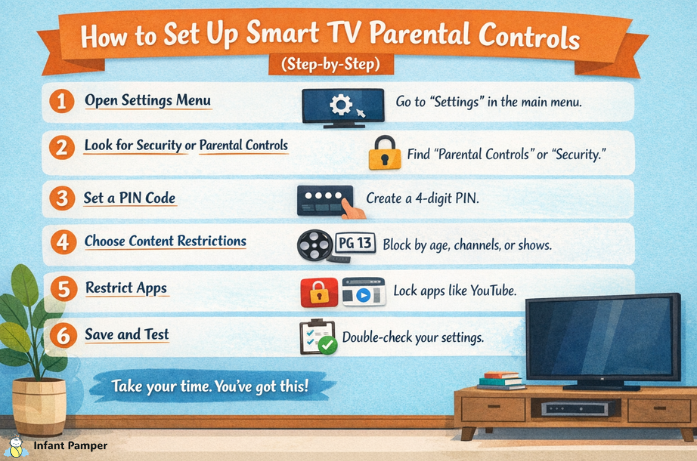
How to Set Up Smart TV Parental Controls (Step-by-Step)
Let’s make this simple and stress-free. You can follow these general steps on most smart TVs.
1. Open Settings Menu
Using your remote, go to the TV’s main menu and find “Settings.”
2. Look for Security or Parental Controls
This section may be labeled as:
- “Parental Controls”
- “Security”
- “Broadcasting Restrictions”
3. Set a PIN Code
You’ll be asked to create a 4-digit PIN. Choose something your child won’t guess easily.
4. Choose Content Restrictions
You can block content based on:
- Age ratings
- Channels
- Specific programs
5. Restrict Apps
Some TVs allow you to lock apps like YouTube or browser access.
6. Save and Test
Always double-check your settings to ensure everything works as expected.
Take your time with this process. There’s no rush, and once it’s done, you’ll feel so much more at ease. And if you’d like a little extra support, Common Sense Media provides easy-to-follow guides that explain parental controls across different devices and apps in a very parent-friendly way.
Samsung Smart TV Parental Controls: A Simple Guide
If you’re using a Samsung TV, you’re in luck because samsung smart tv parental controls are quite user-friendly.
Here’s how you can set them up:
Step 1: Go to Settings
Press the Home button → Navigate to “Settings.”
Step 2: Select Broadcasting
Choose “Broadcasting” → then “Program Rating Lock Settings.”
Step 3: Enter PIN
Default PIN is usually 0000 (you can change it later).
Step 4: Set Restrictions
You can block content based on age ratings or specific channels.
Step 5: Lock Apps
Go to “Apps” → Select app → Choose “Lock.”
This is especially helpful if your child loves exploring apps on their own.
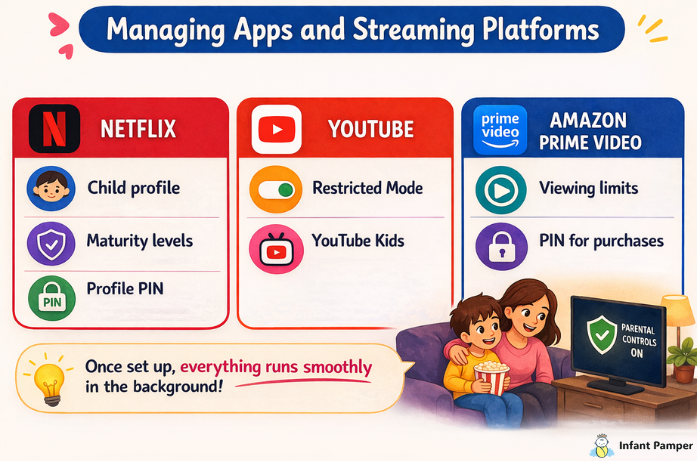
Managing Apps and Streaming Platforms
Even if your TV settings are locked, many apps have their own controls. This is where smart tv parental controls become even more effective.
Netflix
- Create a child profile
- Set maturity levels
- Add a profile PIN
YouTube
- Enable Restricted Mode
- Use YouTube Kids for younger children
Amazon Prime Video
- Set viewing restrictions
- Require PIN for purchases
It might feel like extra work at first, but once set up, everything runs smoothly in the background.
Setting Healthy Screen Time Limits
Let’s be honest, screens are a part of modern parenting. And that’s okay.
The goal isn’t to eliminate screen time, but to balance it.
Here are a few gentle tips:
- Create a daily routine (TV time after homework or play)
- Keep TVs out of bedrooms if possible
- Encourage breaks between watching
- Watch together whenever you can
Sometimes, just sitting beside your child and talking about what they’re watching can make a big difference.
Common Mistakes Parents Make (And How to Avoid Them)
We’re all learning as we go, and that’s perfectly okay. Here are a few things many parents overlook:
Not Setting a PIN
Without a PIN, kids can easily change settings.
Ignoring App Controls
TV controls alone are not enough. Apps need restrictions too.
Using Easy Passwords
Avoid simple PINs like 1234 or birthdays.
Forgetting to Update Settings
As your child grows, you may need to adjust restrictions.
Give yourself grace. You don’t need to get everything perfect on the first try.
Creating a Safe and Positive Viewing Environment
Parental control for smart tv is not just about blocking content, it’s about creating a nurturing space.
You can:
- Choose educational shows
- Introduce meaningful family movies
- Use TV time for bonding
When children feel guided instead of restricted, they respond with more understanding and trust.
When Kids Push Boundaries (And They Will)
At some point, your child will naturally start testing limits, asking for restricted shows or trying to explore beyond what’s allowed. This curiosity is a healthy part of growing up, not something to worry about.
Instead of a quick “no,” take a moment to explain gently. You might say, “That show isn’t right for your age yet, but let’s find something fun we can watch together.” When children feel understood, they are more likely to respect boundaries.
These small, calm conversations build trust over time and help your child learn self-control, not just with screens, but in everyday life too.
Final Thoughts
Creating a safe digital space for your child doesn’t have to feel overwhelming. With a few simple settings and mindful choices, your TV can become a place where your child learns, relaxes, and feels secure.
Parental controls aren’t about being strict, they are about being thoughtful. They help you guide what your child sees while still allowing them to enjoy their favorite moments.
And at the heart of it all, it’s not about the technology, it’s about you. Your care, your presence, and your love are what truly shape your child’s world. And that, mama, is more than enough.
If you found this helpful, don’t forget to follow Infant Pamper for more gentle parenting tips, simple guides, and real mom-to-mom support.
FAQs
1. What are parental controls on a smart TV?
Parental controls are settings that help you manage what your child can watch, including blocking inappropriate content and restricting apps.
2. How do I set up parental controls on my smart TV?
You can set them up through the TV’s settings menu by creating a PIN and choosing content or app restrictions.
3. Can I control what my child watches on streaming apps?
Yes, most apps like Netflix and YouTube have their own parental controls, such as kids profiles and restricted modes.
4. Are Samsung smart TV parental controls easy to use?
Yes, Samsung TVs offer simple and user-friendly options to lock content, apps, and channels using a PIN.
5. Do parental controls completely protect my child?
They help a lot, but it’s still important to guide your child and stay involved in what they watch.
Disclaimer: This article is for informational purposes only and is based on personal parenting experience and general research. Every child and family situation is different, so it’s important to choose what works best for your home. Always review your device’s official guidelines for the most accurate setup instructions.